

Manual
How to use K9metrix at your kennel, one job at a time. Buttons are written in bold, exactly as the app shows them. The pictures come from made-up kennels.
Getting started
Put the app on your phone and sign in. It runs in the phone's web browser, so there is nothing to download from an app store.
iPhone
- Open your kennel's web address in Safari.
- Type your login word and password. Tap Sign in.
- Tap the Share button (the square with an arrow up), then Add to Home Screen, then Add.
Android
- Open your kennel's web address in Chrome.
- Type your login word and password. Tap Sign in.
- Tap ⋮ at the top right, then Install app (on some phones Add to Home screen).
- From now on, open K9metrix from its icon. You stay signed in, and it works with no signal.
- The tabs along the top are Today, History, Kennel, People and Guests. People and Guests are for admins.
- Language: on the sign-in screen, tap English, Svenska, Norsk, Suomi, Français or Deutsch (Finnish, French and German are first drafts, being read by native mushers). Each person can keep their own language. A few screens, such as the print packs, the health forms and racing, are still in English.
- Forgot your password? Ask your admin. Nobody can change their own.
Put your dogs in
Bring in the dogs you already keep in a spreadsheet, or add them one at a time. Admin Needs signal
From a spreadsheet
- Tap People, then go to Dogs from a spreadsheet.
- Tap Quick template or Full template, or use the sheet you already have. Only a name column is needed.
- Quick template, 8 columns: Name, Sex, Date of birth, Lead, Team, Wheel, Pull and Notes.
- Full template, 22 columns: the quick ones plus Status, Mother, Father, Block, Pen, Microchip, Passport, Insurer, Insurance number, Vet clinic, Food plan, Food habits, Allergies and Trekkhundregisteret ID.
- Tap Upload a spreadsheet and pick the file (.xlsx or .csv).
- If a column name is new to the app, it asks Which column is which? Choose what each one is, or Ignore this column, then tap Check again.
- Read the preview: how many dogs are new, how many will be updated, and any line it could not read, with its line number.
- Tap Add them.
- Swedish, Norwegian and Finnish column names work too (Namn, Navn, Nimi).
- Uploading the same file twice changes nothing. A blank cell never wipes what the app has, and no dog is ever deleted.
- Using MushingPlan? Upload its dog export as it is. Breed and registration go on the end of Notes. That file has no Lead, Team or Wheel column, so tick each new dog's positions before Make teams uses it.
- If a note in the file names two dogs together, the preview says so. After the import the app asks Make this a rule? (see Rules).
- Rules between two dogs can come in the same way: tap Download pair-rules template (also an Excel file with pick-lists, or pair rules as CSV), fill it in, choose Pair rules and upload it. Put the dogs in first.
One at a time
- On Today, tap + Add a dog in the Dogs list.
- Type the name, choose the sex and where the dog can run (lead, team, wheel), and say if it is a puppy. If the dog is in Trekkhundregisteret, type its number in Trekkhundregisteret ID. Tap Save.
Set up your yard
Draw your dog yard so everyone can see who sleeps where. Admin Needs signal
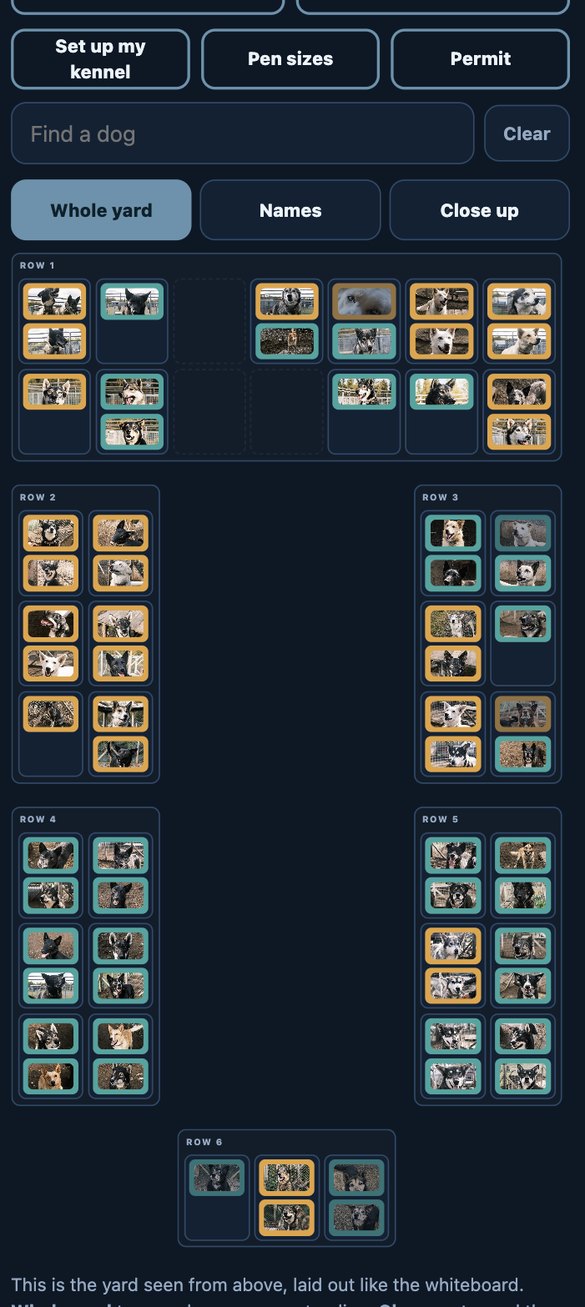
- Tap Kennel, then Set up my kennel.
- Tap Add a block. Give it a name, how many boxes across and deep, which row of the yard it stands in, and Left, Middle, Right or Whole width. The map draws it while you type.
- Tap an empty box. The app asks Who sleeps here? Pick the dog. Several dogs can share a box.
- Tap a dog on the map to move it, take it off the map, or open its page. Dogs with no box yet are listed under the map with Place.
- Tap Done setting up.
- If your spreadsheet had a block and box for each dog, the blocks are drawn for you. You only tidy them.
- Everyone can open Kennel, type in Find a dog, and switch between Whole yard, Names and Close up. Teal is a male, amber a female. Tap any dog to open its page.
Rules
Tell the app which dogs must be kept apart or run together, and what is special about one dog. Admin or Sets rules Needs signal
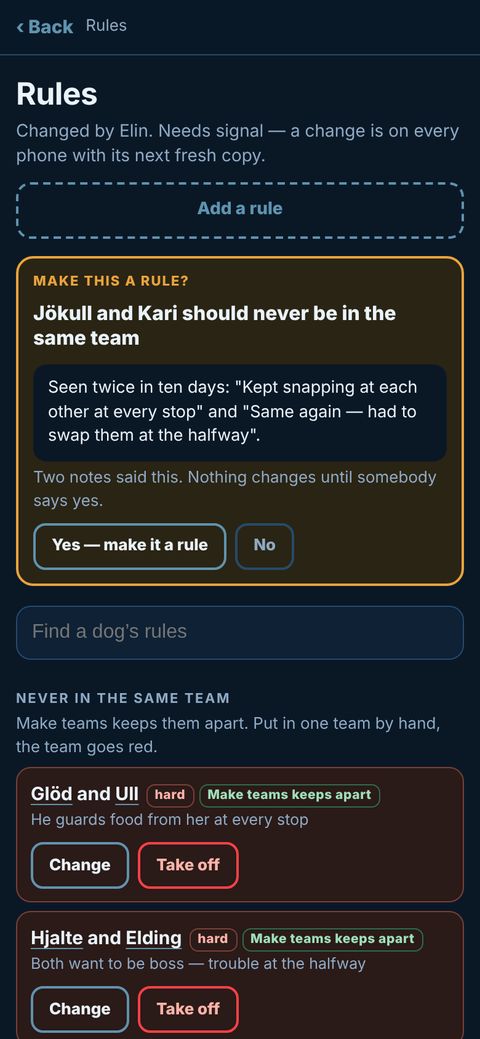
- Tap Kennel, then Rules. (Admins can also go to People, then Open the Rules page.)
- Tap Add a rule. Pick the first dog, the rule, then the second dog.
- Choose hard (never) or soft (try not to), and write why.
- Tap Save the rule. Use Change or Take off later.
Make teams obeys all five pair rules
- Never in the same team: Make teams always keeps them apart.
- Never side by side: hard, never side by side. Soft, avoided whenever another dog can take the place.
- Never behind: dog B never runs in a row further back than dog A. Side by side does not count as behind.
- Must run together: Make teams puts them side by side whenever it can.
- Good together: a nudge. When two dogs fit a place equally well, it puts the good pair side by side. Never a restriction.
- Put a pair together by hand that breaks a hard rule, and the team goes red. If both dogs of a must-run-together pair are in the line but apart, it warns you too.
- Never loose together is not about teams. It is for Free run (see Kennel care).
Rules for one dog
- Open the dog's page and tap Add or change a rule for the dog: runs alone, no male beside, no female beside, prefers a position, not in the first team, days a week at most, lead only. Left only and Right only are set there too.
- Make teams obeys these as well. Only soft Runs alone and soft Lead only are just shown on the dog's page.
Make this a rule?
- When two notes say the same two dogs did not get on, the app asks. One note on the dog itself is enough, for example from your spreadsheet. It quotes the notes.
- Tap Yes — make it a rule or No. Nothing changes until somebody says yes, and it never asks about a pair that already has a rule.
Make the day's teams
Build the teams for a run, change them, and save them so every phone has them. Admin or Makes teams
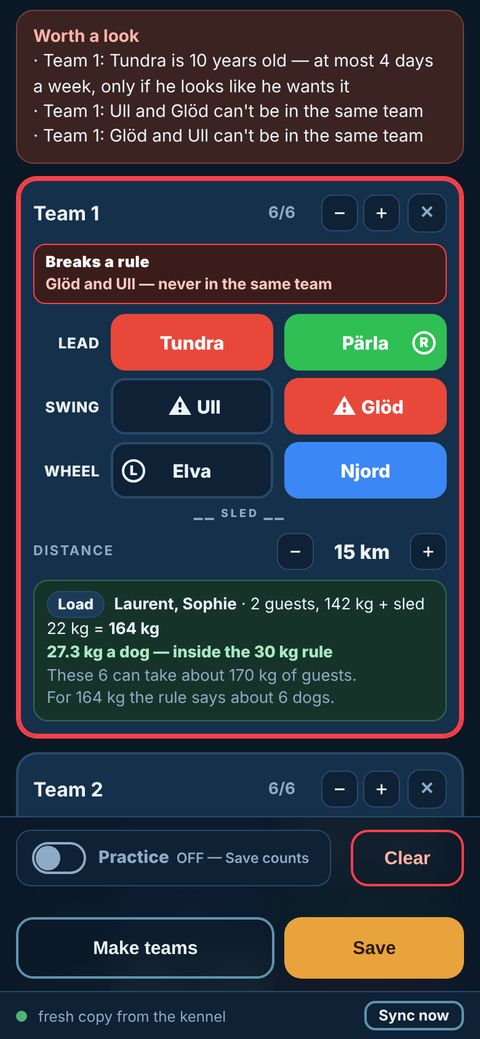
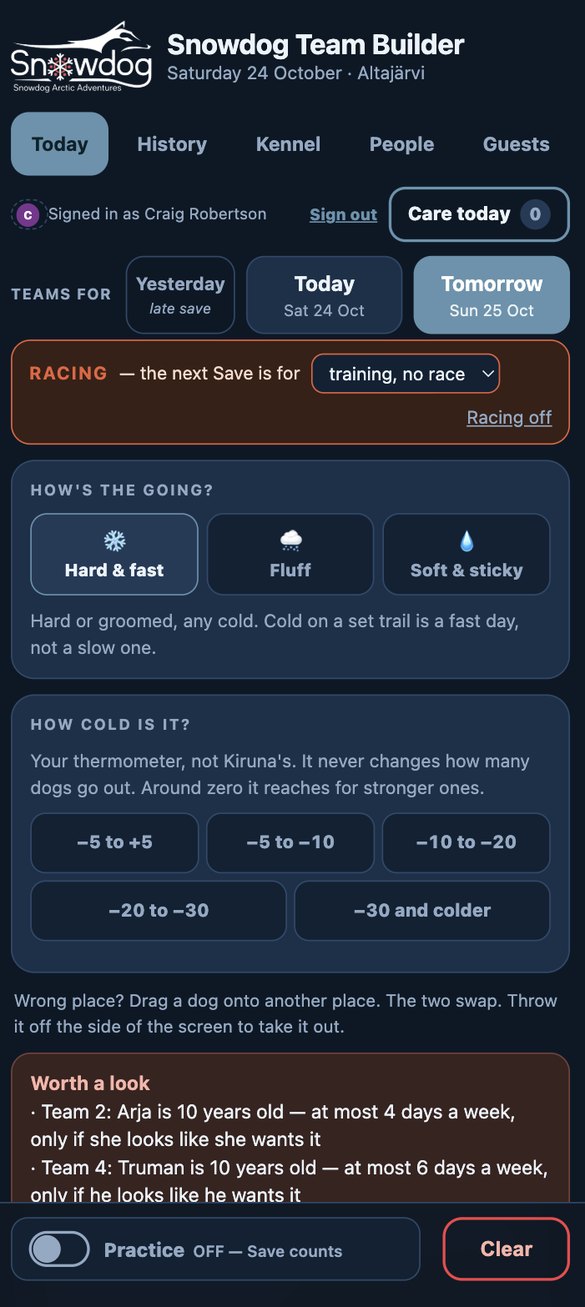
- Tap Today. Under Teams for, choose Yesterday, Today or Tomorrow. After 7 in the evening it opens on Tomorrow.
- On each team card, use − and + for the number of dogs, and set the real Distance. Tap + Add a team for more teams.
- Tap Make teams. It fills every place: the most rested dogs first, leaders in lead, wheel dogs at the wheel, and dogs that are out left out. It obeys all your rules: the five pair rules (never in the same team, never side by side, never behind, must run together, good together) and the one-dog rules.
- Change what you like. Tap a dog to swap it (the best fits are at the top). Or hold a dog still for a moment and drag it onto another place.
- Read Worth a look. The app warns, it never stops you. A team that breaks a hard rule goes red; you can still save with Save anyway, and the app writes down who did.
- Tap Save. The teams go to every phone, every dog gets its kilometres, and the day locks. Tap 🔒 Locked to change it again.
- Out again today? Save asks Save as which run? Choose Another outing.
- Practice switched on: the teams are kept, but no dog gets kilometres. Good for teaching a new guide.
- Two phones: if someone saves on another phone while you build, your screen is not touched. A line says who saved, with Show it.
- ✕ on a team card: on an empty team it removes the team. On a team with dogs it empties the team, after asking. The last team always stays.
- Clear empties every team. It asks first.
Going and cold
Tell Make teams what the trail and the cold are like, so it picks the right dogs.
- How's the going? Tap Hard & fast, Fluff (leans towards your stronger dogs) or Soft & sticky (reaches for your strongest).
- How cold is it? Tap the band your own thermometer shows, from −5 to +5 down to −30 and colder. Tap it again to take it off.
- These change which dogs are picked, never how many. Around zero, the snow is treated as soft and sticky.
Guest weights and load
See what each sled carries, in kilos per dog, when you run guests. This is a switch: keep it off for the ATV season.
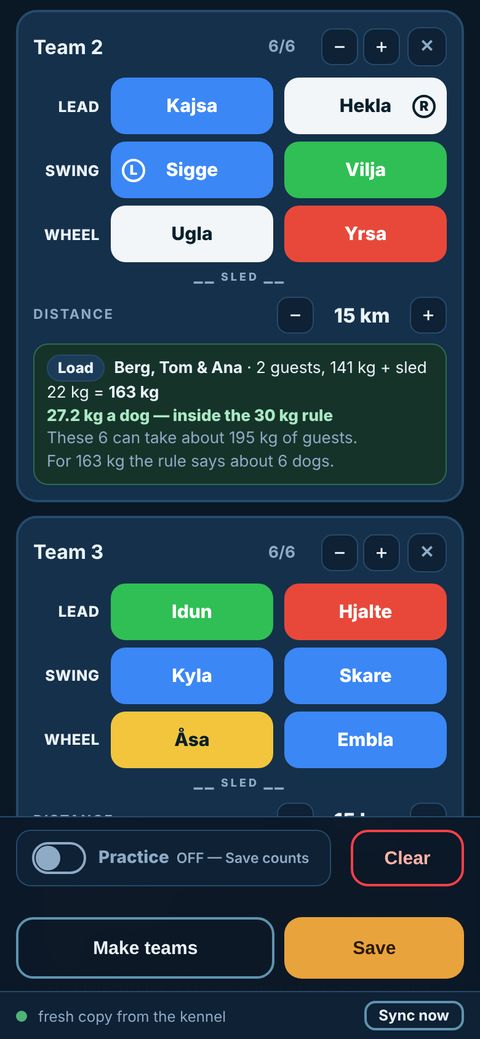
- Admin Tap People, go to Weights and tap On — sleds. Type your sled's weight and a guide's weight, then Save the two weights.
- Tap Guests. If your kennel uses Checkfront, the day's bookings are listed there; tap Type the kilos under a booking to write or correct each guest's weight. No Checkfront? Tap + Add a booking by hand.
- On Today, tap a team's Load row. Pick the booking (or type the kilos), choose The guests drive or The guide drives, check the sled's weight, and tap Use this.
- The card shows the kilos per dog: green up to 30, amber up to 33, red over 33. It also says what these dogs can take and how many dogs the rule suggests.
- It is advice only. Nothing stops you saving.
- The load is kept with the saved team and shows in History.
- Typed kilos and hand bookings work with no signal.
History and GPS tracks
Look back at what ran, mark how it went, and add the GPS track of a run.
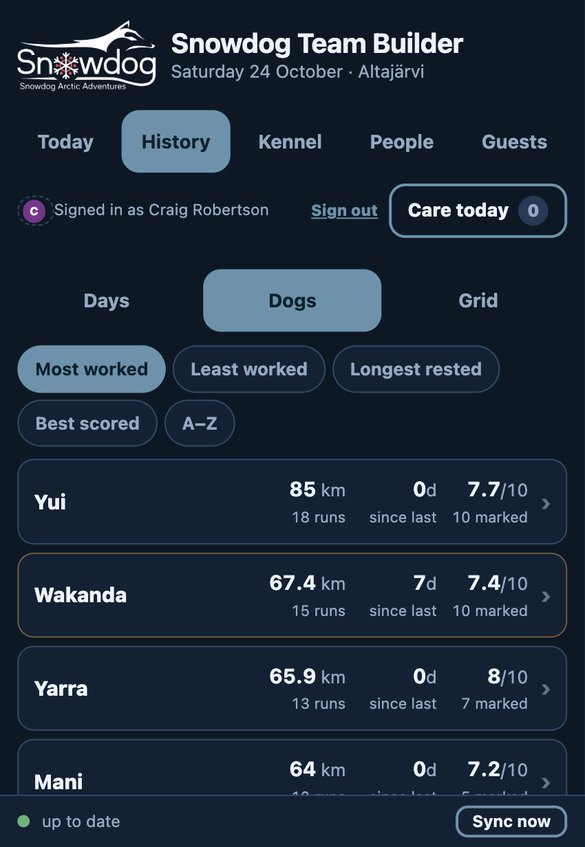
- Tap History. Choose Days, Dogs or Grid.
- Days shows each saved run, who saved it and when. Tap a number from 1 to 10 to mark a team, write a line about it, and tap Save what I said.
- Under a saved team, tap Add the GPS track. Pick the GPX file from your watch or phone app (the zip that Topo GPS saves is fine). No file? Type the km and minutes instead.
- Did several teams run the same trail together? Under Also give this track to… the other teams from the same save are listed, all ticked. Untick any that ran a different way.
- Tap Use the track. The track's km become the km of each ticked team, every dog in them gets the distance, time, speed and climb, and the route is drawn on a map.
- Dogs: each dog's km and runs this season, and days since its last run. Sort by Most worked, Least worked or Longest rested.
- Grid: every dog down the side, the last fourteen days across, km in each box.
- Edit on Today puts a saved run back on Today to fix a dog. Earlier saves of a day are kept, with Bring back.
A dog's page
Everything about one dog, before you unclip it.
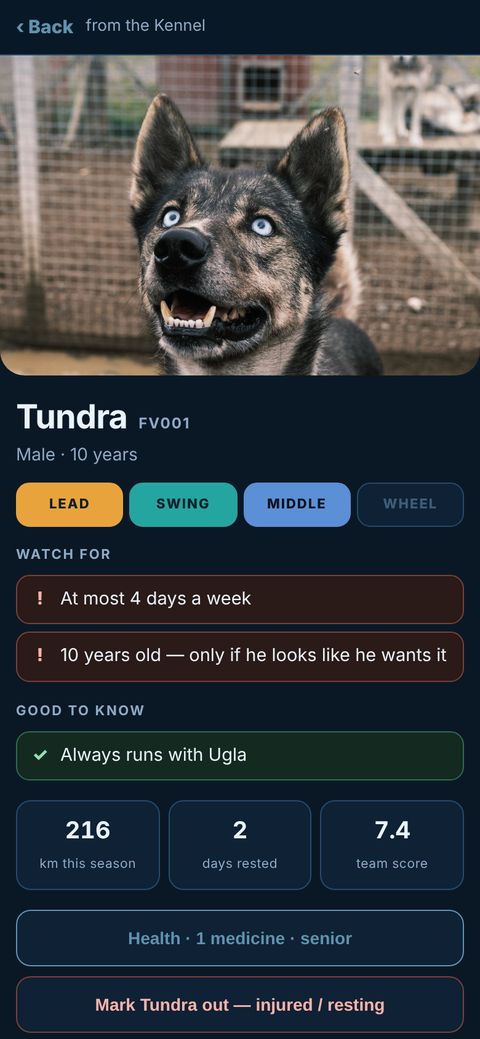
- To open it: tap the dog on the Kennel map, in History or on Care today. On Today, tap the dog and then About.
- At the top: the photo, name, sex and age. LEAD, SWING, MIDDLE and WHEEL light up where the dog can run.
- Watch for and Good to know: the dog's rules and habits in plain words.
- The numbers: km this season, days rested, and its team score (the average mark out of 10).
- Note something about the dog: how it went today. Notes come back by themselves the next time someone puts that dog in a team.
- Further down: Health, the dog's rules, its family, and Everything else about the dog (chip, passport, pull, harness and more).
- Trekkhundregisteret: if the dog has its Trekkhundregisteret ID, its page shows See on Trekkhundregisteret ↗. The family page shows it beside each parent that has one. It is a link only: it opens the dog's record on that site. To add the ID, tap the dog on Today, then Edit (the button has the dog's name in it), or put it in the Full template.
The dog's photo
Admin or Makes teams Needs signal
- Open the dog's page and tap Add a photo (or Change photo). Take a picture or pick one from the phone.
- Any JPG, HEIC or PNG up to 20 MB. The app cuts it to 3:2 and makes it small before sending.
- The photo shows on the dog's page and on the yard map, on every phone after its next sync. Remove photo takes it off.
Health, injuries and rest
Keep each dog's health record in one place. The app writes down what people tell it. It never diagnoses.
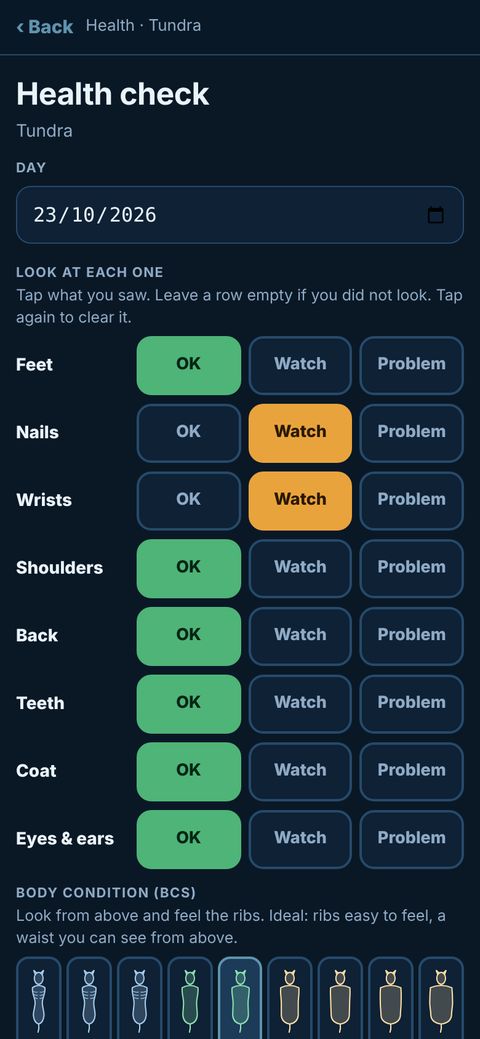
Health check
- Open the dog's page and tap Health, then Health check.
- For feet, nails, wrists, shoulders, back, teeth, coat, and eyes and ears, tap OK, Watch or Problem. Leave a row empty if you did not look.
- Under Body condition (BCS), tap the drawing that looks like the dog. BCS is a body score from 1 (very thin) to 9 (very heavy); 4 to 5 is ideal.
- Type the weight if you have it. Tap Save the check.
Medicines, vaccines, vet visits, papers
- Medicines: + Add a medicine with how much, how and when, and where it is kept. The doses then show on Care today with Given and Skip.
- Vaccine / worming and Vet visit keep the dates, and the app reminds you when the next one is due.
- Documents: keep vet reports, insurance papers and passports with the dog, as a PDF or a photo. Needs signal.
- Print for the vet makes one page with the dog's whole record.
Out injured or resting
- On the dog's page, tap Mark … out — injured / resting (the button has the dog's name in it). On Today: tap the dog, then Out — injured / resting.
- Choose what it is, and which side if it asks. The day the dog is back is filled in for you; change it if needed.
- Tap Mark her out (or Mark him out).
- The dog comes off every team. On the morning it is due back, it is in the pool again by itself.
- Only admins, and people with Sets rest, can change the back date or put a dog back early.
- In season: on a female's page, tap In season — 21 days from today. Make teams leaves her out until then.
Kennel care
The daily welfare record: doses, rounds and time out of the pen. Everyone can fill it in, and it works with no signal.
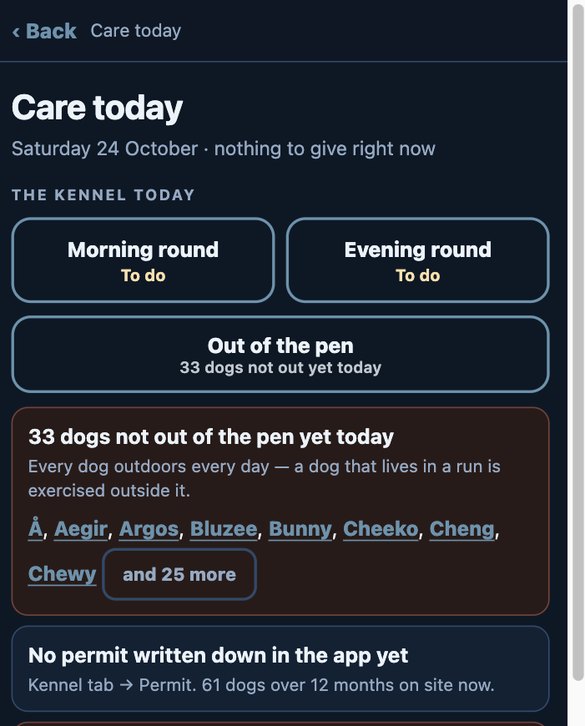
- Tap Care today at the top, next to your name. The red number is how many doses are due now.
- Give each dose, then tap Given. Skip only with a reason.
- Tap Morning round (later Evening round). Switch on All dogs seen, Water given and Dog houses dry. Tap Save the morning round.
- Tap Out of the pen. Tap each dog you took out, choose Walk, Free run or Play yard and how long, and save. Dogs that ran in a saved team count by themselves.
- Read the list underneath: dogs not out yet, missed rounds, frost days with too little water, pens too small, the permit count, and chips not registered.
- Free run: Kennel, then Free run. Tick the dogs and tap Out now. It warns if two dogs that are never loose together are ticked, or a female in season with males. Save a group you use often.
- Admin Once: Kennel, then Pen sizes. Tap each box and type its size. A pen too small for the dogs in it gets a red mark. Then Permit: the permit number and how many adult dogs it allows.
- Pen sizes and the permit follow Sweden's rules. Norway's and Finland's rules are coming.
Inspection pack
Everything an animal-welfare inspector asks to see, printed from your daily records. Admin
- Tap Care today and scroll to the bottom.
- Tap Inspection pack — print the whole kennel, then Print. Print it, or save it as a PDF.
- Work down Things to fix before an inspection. When it says Nothing outstanding, you are ready.
- The pack holds every dog and chip, health checks, medicines and doses, vet visits, exercise and time out of the pen, rounds, pens, the permit and your rest rules.
- There is no money on it.
Staff and food stock
Who is on today, the daily task list, and how many days of food are left. Light: no hours, no pay. This is a switch.
- Admin Tap People, go to Staff and switch it on.
- Tap Kennel, then Staff. Tap a day, then + Put somebody on (admins and Makes teams). Pick a login, or type a name for a volunteer without one. Add their job and tap Put on the rota.
- Under today's tasks, tap Start with the usual list, or Change the list to write your own. Anyone ticks a task when it is done. Ticking Morning round opens the round itself.
- Under food stock, add each food. Tap Used today once a day, Delivery when food comes, and Counted when you count the bags.
- One line on Today shows who is on, how many tasks are done, and how many days the food lasts. It turns amber when food runs low.
- Ticks and stock work with no signal.
Racing
Pick the race team from the dogs that are ready. This is a switch, given person by person. The racing screens are in English.
- Admin On People, on the person's row, tap Races: no — tap to allow.
- Tap Kennel. At the top, switch Racing on and tap Races ›.
- Tap + Add a race: name, race day, class, distance, dogs at the start, fewest at the finish. Tap Add the race.
- On each racing dog's page, tap Put in to add it to the race pool. Fill in its race card (bootie size, vaccinations, vet check, leader type) and tap Save the race card.
- Back on Races, tap the race. You see who is ready: km in 7 and 28 days, longest run, speed from GPS. Doubtful dogs say why.
- Tap Build the line on Today, check the team, and Save. A strip on Today shows which race the next save is for.
People and roles
Give every guide their own login, choose what each may do, and close logins when people leave. Admin Needs signal
- Tap People and go to Add somebody.
- Type their name, the word they type to sign in, and a password to start them off (at least 8 characters). Or tap Make one for me: the app makes an easy password of three words and two numbers and shows it big, to read out.
- Seasonal crew? Fill in their last day. Their login stops by itself the morning after.
- Tick Makes teams if they may save and change the day. Leave it off for a volunteer; they still see everything.
- Tap Add them. Tell them the password out loud or on paper.
What each person may do
- Everyone sees the saved teams, every dog's page and the yard. They write notes, do health checks, tap Given, save rounds and record time out of the pen.
- Makes teams: make, save and unlock the day; add medicines, vet visits, documents and dog photos.
- Sets rest: change when an injured or resting dog is back.
- Sets rules: add and change rules.
- Races: the racing switch, race pool and race cards.
- Admin: everything, including People, Guests, the switches, the kennel logo, Export everything and the inspection pack.
Each switch sits on the person's row, with Password, Last day, Language and Turn off. A login you turn off cannot sign in, but nothing they did is deleted.
A sign for each person
- Everyone can pick a sign (a small picture, such as an animal or a snowflake) that shows beside their name: on saved teams, notes, the rota and the rounds.
- Tap the circle beside Signed in as at the top and pick one. No sign — the letter shows the first letter of your name instead.
- Admins can set anyone's sign: tap the circle before the person's name on People.
Kennel logo
- Admin Tap People, go to Kennel logo and tap Add a logo. A PNG, JPG or SVG up to 10 MB. The app makes it square without cutting anything off.
- Your logo shows on the sign-in screen, at the top of every page, on the phone's home screen and on the printed packs. With no logo, the app shows your kennel's initials in a circle.
- Change the logo or Remove the logo later. Needs signal.
No signal
The dog yard often has no signal. That is fine.
- Each phone keeps its own copy of your kennel. Make teams, save, notes, health checks, doses and rounds all work offline.
- What you do waits on the phone and is sent by itself when there is signal. The bar at the bottom says how many things are waiting; Sync now tries at once.
- Only a few things need signal: signing in for the first time, People, rules, setting up the yard, documents, photos, the logo, uploads and exports.
Your data
Your kennel's records are yours.
- Admin Download everything yourself, at any time. Tap People and go to Export everything:
- Dogs list: your dogs as a spreadsheet (.csv). It opens in Excel and goes straight back in.
- Whole kennel file: everything in one file (.db): dogs, runs, teams, rules, health and people. Passwords are left out.
- Documents and photos: one .zip with every stored document and every dog's photo.
- Download my dogs, under Dogs from a spreadsheet, gives the same dogs list.
- If you stop using K9metrix, you get a copy of everything without asking.
- Each kennel has its own private database. No other kennel sees your data.
- Read how we handle data in the privacy policy.
Questions about the app: [email protected]